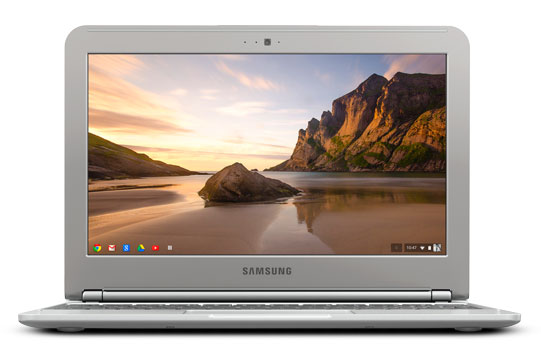
We've been using our new Samsung Chromebook for about a month now and it has become our favourite road device and preferred "Let Me Google That" tool. With an 8 second cold boot time, over 6 hours of battery life, and secure access for employees and guests, it's the perfect business and personal cloud productivity device. Today, Chromebooks have been enhanced for simple public kiosk use. For more details visit: Chromebook kiosks for customers and employees.
Public users leave no trace behind and IT managers have no viruses or malware to worry about. Starting at a price of $249.99 (on sale for $229.99 until May 2!) at Best Buy or Future Shop, it's a very cost effective business or family computing solution.
A Google Apps domain is not required to use them but certainly having one gives you enhanced administration and control over the devices deployed across your organization. For example, you can centrally configure the passwords for WiFi hot-spots your employees may access. For more details, take a look at Google's documentation on Managing Chrome Devices.
In Canada, Alberta School boards are fans and have deployed over 3,400 Chromebooks so far. Our customers that have already eliminated servers from their premises and moved to the cloud are ready to go!
The cost savings of Chromebooks add up quickly when you consider the alternative of buying a Windows netbook, Microsoft Office, antivirus, and a Windows Server (domain controller) to centrally manage passwords and computer policies. Yet on Windows devices, you are still at risk unless you encrypt the hard drive. Windows with Microsoft Office or Outlook store oodles of confidential email and other documents on your notebook hard drive that is easy to access if it falls into the wrong hands. With a Chromebook, you can still store email and documents offline for updating while on a plane but it's stored in an encrypted format and the built in secure boot features ensure that your data stays secure. Plus, it is easy for administrators to remotely wipe a Chromebook, leaving no trace of the data that was on the machine.
Contact us at InterlockIT.com to learn more and to determine if Chromebooks are a good fit for your organization!
Interlock IT Inc. - moving businesses to the cloud since 2009
Tuesday, April 30, 2013
Monday, March 11, 2013
Using Google Apps with the BlackBerry Z10: Device Administration and Remote Wiping
The new BlackBerry Z10 brings a number of great new features to the plate for enterprise users, all without the need for costly BlackBerry Enterprise Server hardware or BlackBerry Mobile Fusion licenses. These costs aren't insignificant; BlackBerry Mobile Fusion costs $99/device/year. If you want to manage a phone and tablet you pay twice or $198/user/year. Compare that to Google Apps which costs $50/user/year with no per device fees.
In our last post, we showed you how easy it is to set up a brand new BlackBerry Z10 to work with your Google Apps domain. Thanks to the new BlackBerry 10 operating system and the continually-improving functionality of Google Apps, it's now easier than ever to manage all your mobile devices from one centralized location.
In your standard Google Apps for Business Mobile Device settings, you will be presented with a screen similar to the following:
On this page, you'll see all the mobile devices currently registered to each user in your organization. The last one is what we're particularly interested in, as that is our fancy new BlackBerry Z10. (Note: it's listed as Unknown/Unknown here because we took these screenshots very soon after the device's launch. It now shows up correctly as a BlackBerry Z10.) Clicking the Device ID will bring you to the device's current status page, where you'll be able to see such information as the first time the device synced to Google's system, the last time it did, its current state, the user's name and email addresses which are delivering mail to the phone, as well as some more technical information.
Alternatively, if you have a large number of mobile devices, it may be easier to get to the one that you need through the user's control panel settings. Simply scroll down to the bottom and you will see the mobile devices the user has registered with his/her account.
Through either of these control panel screens, you have the option to wipe the device. This will wipe all data from the device and restore it to factory settings. You will be presented with a fairly standard warning screen when you choose to wipe the device, at which time you will either confirm or cancel the wipe process.
And that's it! Nice and simple device administration, without the need for any additional hardware or software.
In our last post, we showed you how easy it is to set up a brand new BlackBerry Z10 to work with your Google Apps domain. Thanks to the new BlackBerry 10 operating system and the continually-improving functionality of Google Apps, it's now easier than ever to manage all your mobile devices from one centralized location.
In your standard Google Apps for Business Mobile Device settings, you will be presented with a screen similar to the following:
| Click to enlarge. |
![]() |
| Click to enlarge. |
| Click to enlarge. |
And that's it! Nice and simple device administration, without the need for any additional hardware or software.
Friday, February 15, 2013
Using Google Apps with the BlackBerry Z10: Syncing Email, Contacts and Calendar
Google Sync now officially supports BlackBerry 10 devices, so this workaround is no longer necessary. To see updated instructions, click here.
As you can imagine, being a Google Apps reseller means we here at Interlockit.com get to experience all the joys (and challenges) of dealing with a vast array of different mobile devices. The newest kid on the block is the BlackBerry Z10, which just so happens to be BlackBerry's first smartphone to support Microsoft ActiveSync. Unfortunately, much like its iOS and Windows Phone relatives, the Z10 does not differentiate a Gmail account from a Google Apps account, so it needs a little hand-holding to make use of these new available features. Follow this guide to ensure your new Z10 is syncing your email, contacts and calendar with your Google Apps account. Let's jump right in!
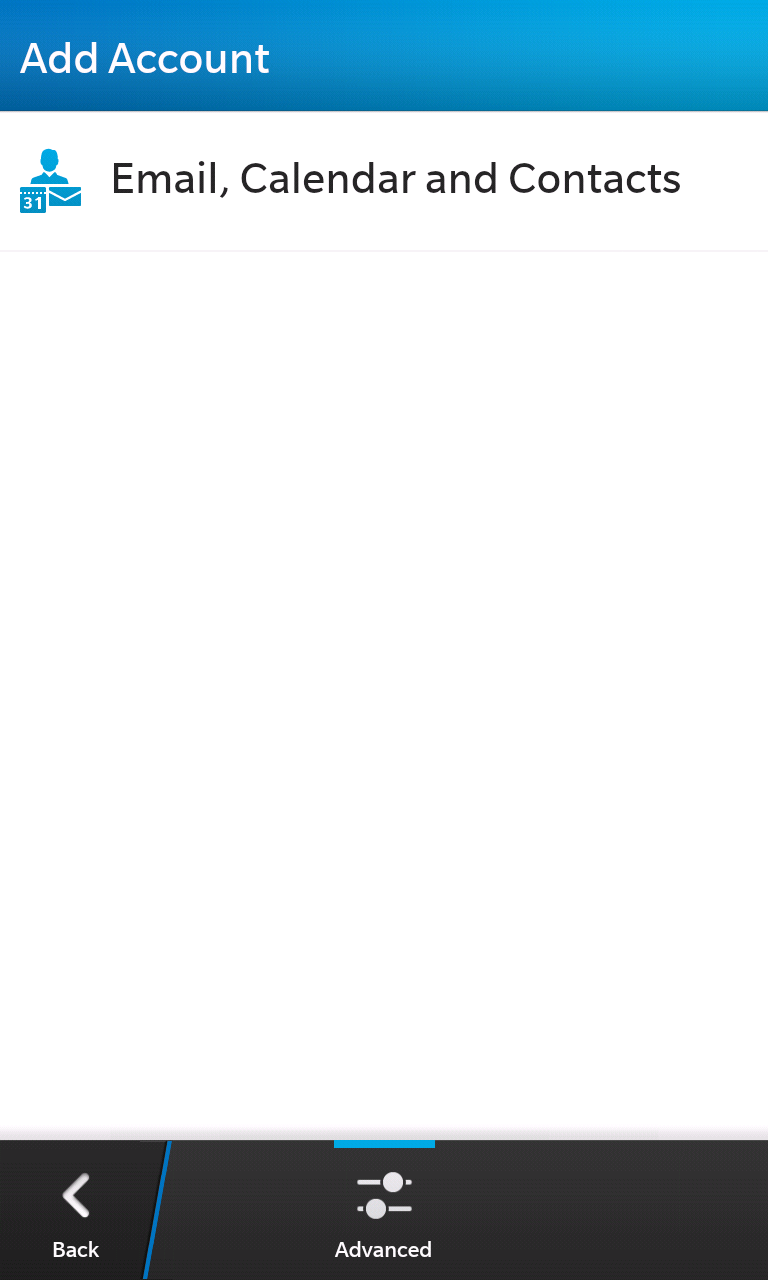
First, access the System Settings menu and select Accounts.


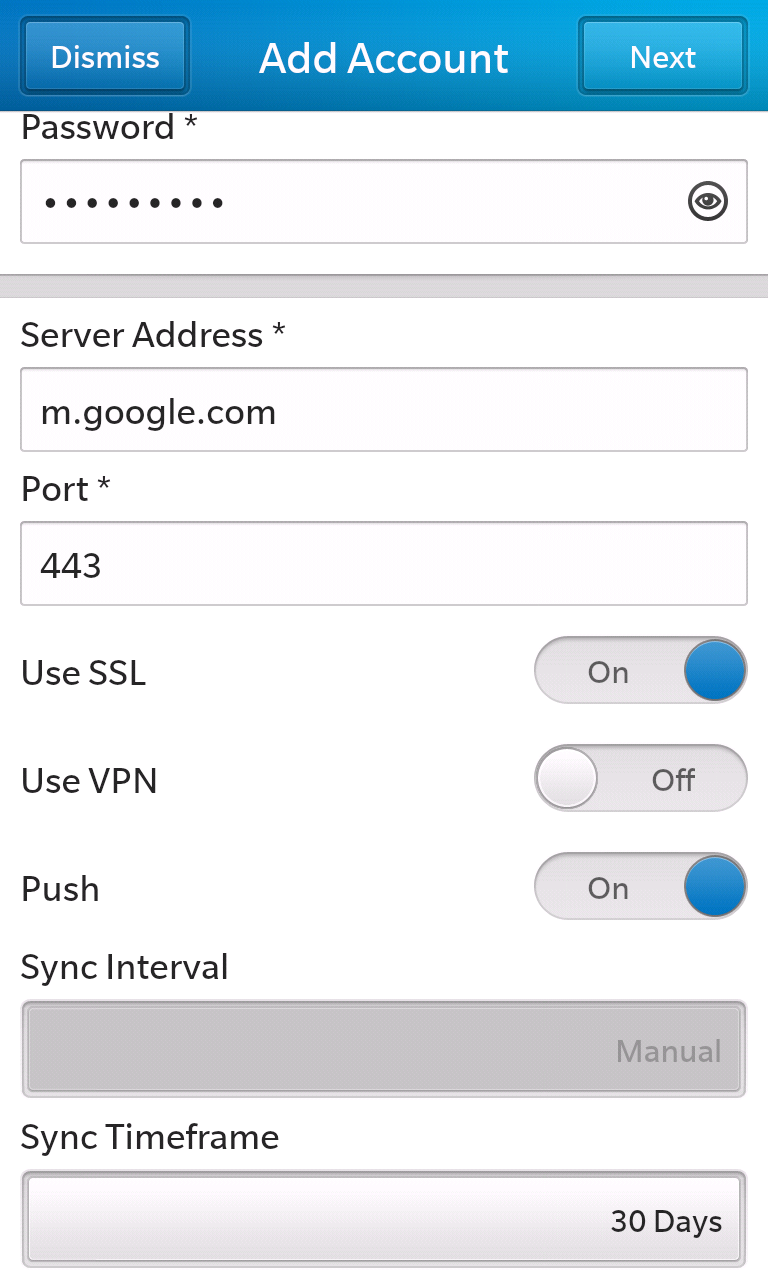
Put your Google Apps password in the Password field, and use the server address of m.google.com on port 443. Turn both SSL and Push on, but leave VPN off. You may also choose the Sync Timeframe, which determines how much email content to keep on your device.

First, access the System Settings menu and select Accounts.

Next, click the Advanced button at the very bottom of the screen.

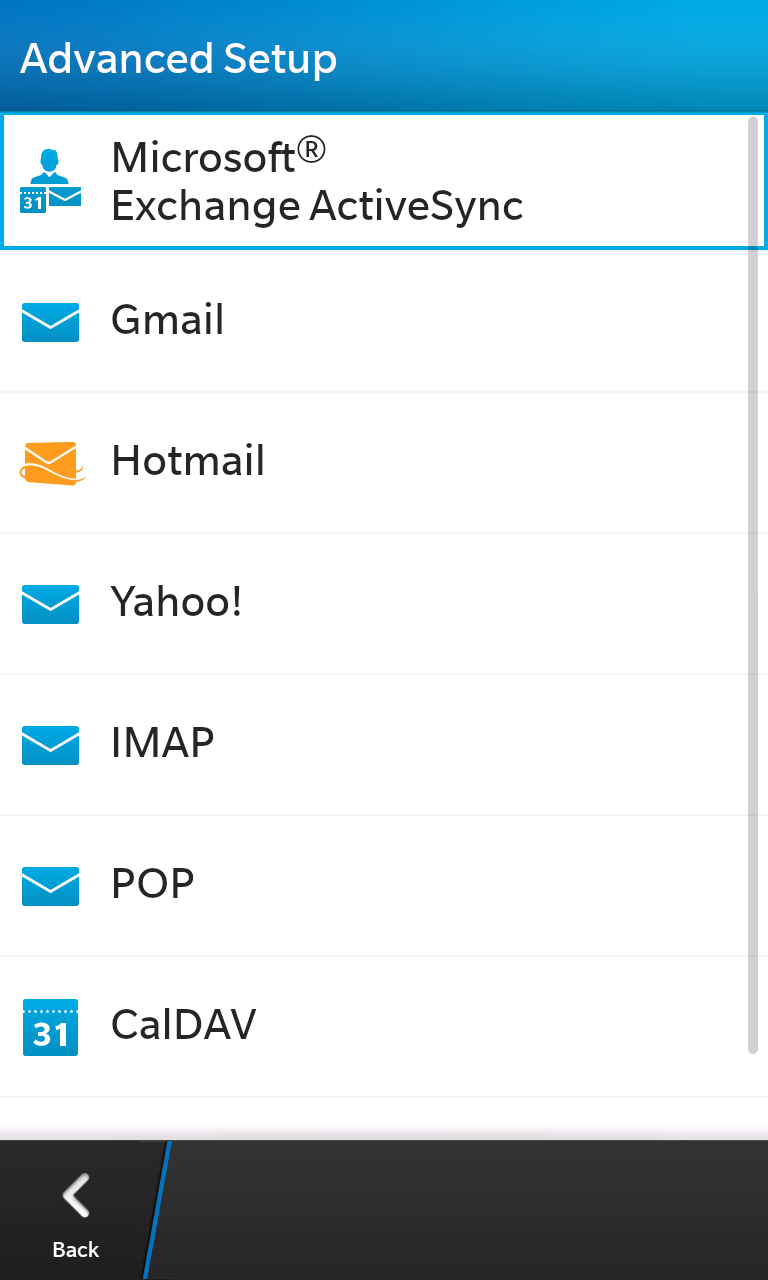
Choose Microsoft Exchange ActiveSync.
Fill in Description with what you'd like the account to be called on your device. In the Email Address field, enter your full email address. In the Domain and Username fields, simply split your email address in the same way shown here.

Put your Google Apps password in the Password field, and use the server address of m.google.com on port 443. Turn both SSL and Push on, but leave VPN off. You may also choose the Sync Timeframe, which determines how much email content to keep on your device.

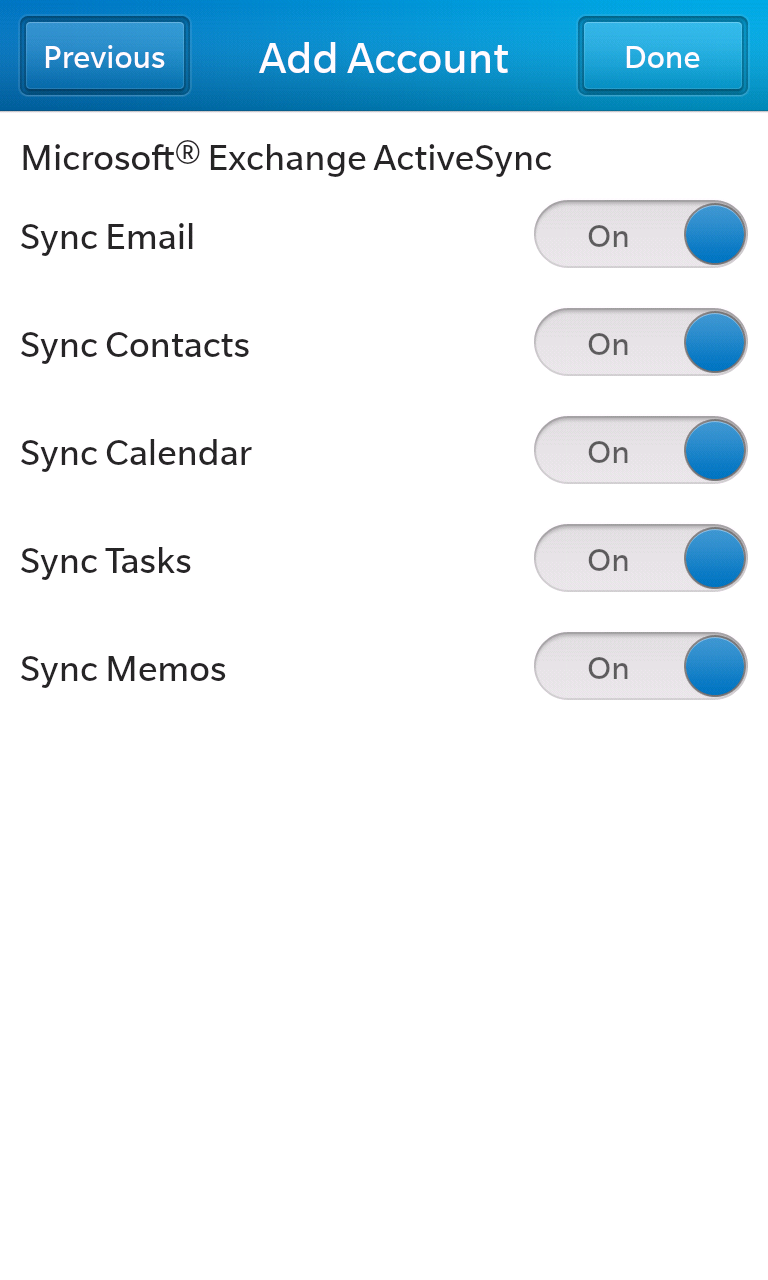
Finally, you may choose which items to sync to your device from your Google Apps account. Unfortunately you can not sync Tasks and Memos with Google Apps at this time.
Hit Done, and the Z10 will verify your settings, add your account, and begin syncing!
Breathe a sigh of relief while reflecting upon the days of yore, filled with calls to your service provider to reset your BlackBerry Internet Service password. As you can see, BlackBerry has the beginnings of a winner with the Z10; let's hope they keep it up!
To find out more about Interlockit.com and what moving to the cloud can do for your business, visit us at http://www.interlockit.com/
Thanks to +Nicolay Doytchev for the screenshots!
Labels:
Blackberry,
Google Apps,
Q10,
Z10
Subscribe to:
Posts (Atom)