Friday, December 8, 2023

Maximize Your Business Potential with Microsoft Office 365 - Seamless Deployment by Interlock IT


Having the perfect tools can make all the difference for businesses. Imagine this: Microsoft Office 365, the superhero suite that transforms how teams work and collaborate. At Interlock IT, we are not just a face in the crowd; we are part of Microsoft's 5% crew, flaunting our Silver Microsoft Partner Competency badge with our pride. Our mission? To be your guiding star through the incredible world of Microsoft Office 365. We've got the expertise, the experience, and the passion to make your journey to Office 365 as smooth as can be.

Unlocking the Power of Microsoft Office 365

Many businesses face the challenge of navigating the complex world of Office 365 deployment. The wrong implementation can lead to unnecessary recurring support costs or the inefficient "managed services." Interlock IT believes in doing it right for the first time. We ensure that your Office 365 deployment aligns perfectly with your business needs, eliminating ongoing "break and fix" expenses.

Partnering for Success

As a Silver Microsoft Partner, Interlock IT stands out in providing solutions that leverage the full potential of Microsoft Office 365. We understand the intricacies of this suite - Microsoft Teams, OneDrive, SharePoint, Outlook - hosted by Microsoft without hefty upfront costs of an on-premise deployment.

Why Choose Interlock IT for Microsoft Office 365?

  • Expert Deployment: We deploy Office 365 with precision, ensuring a seamless integration tailored to your business requirements.

  • Eliminating Unnecessary Costs: Say goodbye to unnecessary recurring support expenses. Our deployment ensures a cost-efficient setup, eliminating the need for ongoing "break and fix" solutions.

  • Empowering Productivity: Harness the power of Office 365's rich desktop-based applications combined with the flexibility of fully hosted Internet services for unparalleled productivity.

  • Seamless Collaboration: Enable seamless collaboration and communication across your organization, transforming the way your teams work together.

Your Path to Office 365 Success Starts Here

Don't let the complexities of Office 365 deployment hold your business back. Partner with Interlock IT, where expertise meets experience, ensuring a hassle-free and successful implementation of Microsoft Office 365.

Ready to Transform Your Business?

Get in touch with us today, and let's embark on this journey together. With Interlock IT by your side, embrace the power of Microsoft Office 365, propelling your business towards enhanced productivity, collaboration, and success!


Friday, December 1, 2023

Maxed Out: Understanding Google Workspace's Pooled Storage Exceeded

Pooled Storage Limit


Are you exhausted by the constant flood of email alerts and notifications, incessantly reminding you that your pooled limit storage has exceeded? Seeking a subscription upgrade but frustrated by the slow and cumbersome response from Google support? Whether you are a seasoned user or just stepping into the world of Google Workspace, these alerts disrupt your workflow, hindering productivity, and causing unnecessary stress. Why not opt for a direct conversation with a human, at no extra cost, to find your best subscription? Interlock IT is your solution. Interlock IT is here, providing personalized guidance to simplify your subscription, minus the hassles.

We all know that Google is always on the move, tweaking how we store and manage data. Recently, Google switched up how storage works in Google Workspace. Previously, everyone had their own storage limit, but now it is all about this shared pool of storage for the whole company. According to Google, "Pooled storage provides a more simple and flexible way to manage storage, as all storage is shared across the organization, removing the need to manage it on a per-user basis."

Here's the scoop: instead of each person having their own storage limit, the company now shares one big pool of storage. Sounds good, right? Well, the tricky part comes when this shared pool hits its limit, and suddenly there's a risk of not being able to create new documents. That's what Google calls "pooled storage exceeded."

What's the fix? Google has 2 suggestions: it is either freeing up your Google storage space or buying more Google storage. Opting for a higher-tier plan in your Google storage is a more favourable option than constantly trying to free up space within your existing storage. Sure, it might cost a bit more, but it also means getting more storage space. This upgrade helps avoid productivity losses that happen when the shared storage pool hits its cap.

This shift to shared storage in Google Workspace means a more collective way of managing space but also calls for a heads-up about possible limits. Getting that higher-tier plan might mean a smoother ride in the long run, ensuring everyone can keep working seamlessly in Workspace.

In the end, Google's storage switch has its upsides and downsides. Sharing storage means a more collective approach, but it also means keeping an eye on those limits. Opting for an upgraded plan can save a lot headaches, ensuring things keep running smoothly within Google Workspace.

Contact Interlock IT, and let us assist you in choosing the most suitable Google Workspace subscription at the best value, all without any additional cost!

Friday, November 24, 2023

Optimizing Google Workspace Operations: The Interlock IT Solution


In today’s fast-paced and interconnected world, the way we work has transformed dramatically. Amid this shift, Google Workspace stands tall as a beacon of innovation, redefining the landscape of productivity and collaboration. 

At its core, Google Workspace is a powerhouse of productivity tools. Its integrated suite—from Gmail to Docs, Sheets, Drive, and more—provides a harmonious ecosystem that streamlines workflows. It eliminates the need to juggle between disparate platforms, allowing users to navigate effortlessly through their tasks. This consolidation significantly boosts efficiency, enabling individuals and businesses alike to focus on what truly matters: their work. 

As users navigate the vast potential of Google Workspace, the need for expert guidance becomes paramount. This is where Interlock IT enters. Interlock IT works like a helpful guide for businesses using Google services. They are experts in making Google tools work even better for you and your business. Positioned as proficient specialists, Interlock IT excels in optimizing the functionalities of Google tools to meet specific business needs. Whether it involves setup, issue resolution, or optimizing operations for seamless efficiency, Interlock IT stands as a dedicated partner, committed to empowering businesses to derive maximum value from Google's services. 

With Interlock IT now in focus, let’s delve deeper into the advantages they bring. Businesses often encounter hurdles in managing Google Workspace storage and efficiency. Here's where Interlock IT shines, offering tailored solutions to streamline these challenges. 

Personalized and Dedicated Support 

Interlock IT offers more personalized solutions, catering specifically to the needs of individual businesses or clients, whereas Google might have more standardized responses due to the scale of its operations. Dedicated Account Managers: Interlock IT assigns dedicated account managers who offer more personalized attention compared to the more automated or self-service support models of larger corporations. 

Direct and Immediate Contact 

Google primarily offers support through online forums, help articles, and community boards. Accessing direct one-on-one support can be challenging. Interlock IT provides direct contact with a dedicated support team, ensuring quicker response times and a more direct line of communication compared to Google's more extensive but less direct support system. 

Specialized Expertise and Focus 

Solutions provided in forums or community boards might not always be accurate or reliable, leading to potential misinformation or incomplete resolutions. Interlock IT has a more in-depth understanding of specific technical issues or solutions within its niche, providing more targeted and specialized assistance compared to the broad spectrum of services Google offers. 

Proactive and Relationship-Oriented Support 

During peak periods or for certain issues, getting a timely response can be frustrating. Users might experience delays in getting their queries addressed. Interlock IT takes a proactive approach to client communication, ensuring swift issue resolution and a smoother user experience. It prioritizes proactive engagement with clients, aiming to swiftly address concerns, ultimately fostering a more efficient and seamless interaction. 

Flexibility and Adaptability 

Interlock IT offers greater flexibility in tailoring its services to match the unique preferences of each client. This adaptability extends to payment and subscription plans, setting it apart from the limitations typically seen with Google's payment methods. While Google primarily restricts payment options to credit cards, Interlock IT widens the horizon, allowing subscriptions to be paid via credit cards and bank transactions, offering clients a more diverse and accommodating range of payment choices. 

Google Workspace is Better with Interlock IT 

Interlock IT isn't just a service provider; it’s a transformative partner in the realm of Google Workspace. Its unwavering commitment to personalized support, proactive problem-solving, and tailored solutions sets its expertise apart in the digital landscape. We understand your aspirations—to cultivate a workplace where collaboration knows no boundaries, enabling your team to thrive regardless of location. The acceleration of your company's growth isn't a distant dream but an achievable reality. 


If you haven't partnered with Interlock IT for your Google Workspace needs, we highly recommend joining us to revolutionize your digital experience. With Interlock IT, you're empowered to navigate Google Workspace adeptly, ensuring seamless operations, informed decisions, and expert management of your digital ecosystem. Join us today and unlock a new level of productivity!


Tuesday, October 5, 2021

Google Workspace transition from G Suite is happening soon!

On October 6, 2020 Google introduced the Google Workspace brand, product experience, and set of offerings to better equip customers for the future of work. Whether you're at home, at work, or in the classroom, Google Workspace is the best way to create, communicate, and collaborate.

Google has notified Google Cloud Partners like us that G Suite customers will be automatically transitioned beginning January 31st, 2022.

But please note that all legacy G Suite customers can choose to transition or upgrade early to receive the new Workspace features, plus take advantage of pricing incentives on annual commitments.

For customers on G Suite Business with Google Vault, the switch to Google Workspace Standard increases the price from $15.60 CAD to $23.40 CAD or $18 USD/user/month:

G Suite (Old)Google Workspace (New)
FeaturesG Suite BusinessBusiness StandardBusiness Plus
StorageUnlimited2TB5TB
Google Meet Recording
Maximum Number of Meet participants100150250
Device Audit Log
Google Vault
Price - Monthly$15.60 CAD$15.60 CAD$23.40 CAD

For customers on G Suite Basic the price remains the same at $7.80 CAD or $6 USD/user/month and the only features lost in the switch to Google Workspace Starter are Android and endpoint device management related.

If you have a legacy G Suite subscription and buy direct from Google, transitions to Google Workspace subscriptions and prices will begin as soon as November 2021. We highly recommend contacting a Google Workspace focused partner like us to review incentives available for upgrading. We deeply understand the nuances of the different plans and will ensure you buy only what you need, potentially saving you big money over the long term.

For customers considering dropping Google Vault, we offer less expensive 3rd party backup options that provide superior protection against malicious actions, as well as disaster recovery. Google Vault, however, is still the best option for e-discovery, retention policies, and legal holds.

For expert assistance on transitioning to Google Workspace, email us at info@interlockit.com or call us at (416) 840-6268 !

Helpful links:

Google Workspace FAQ
Google Workspace vs G Suite editions detailed comparison
Compare Google Workspace editions - Business
Google Workspace - Pricing and Features
Cloud Identity Comparison
Google Workspace Services Summary
Google Workspace Technical Support Services Guidelines
Cloud Identity Services Summary
Compare Education Editions
Google Workspace for Education

Wednesday, March 10, 2021

Interlock IT wins Copper Customer First Partner Award!


We are happy to share this achievement! Interlock IT wins Copper Customer First Partner AwardWhether it's a customization of your company workflow, integration or going live plan, our team is always here to help you get it done. Click here to find out how we can help.

Tuesday, July 2, 2019

Google Calendar Exporting / Importing

Google to Google Calendar Migration


In some scenarios it is necessary to migrate Google Calendar data manually between two Google accounts.
Usually, this is very simple.

Exporting from Google Calendar

  1. Open Google Calendar on the source account
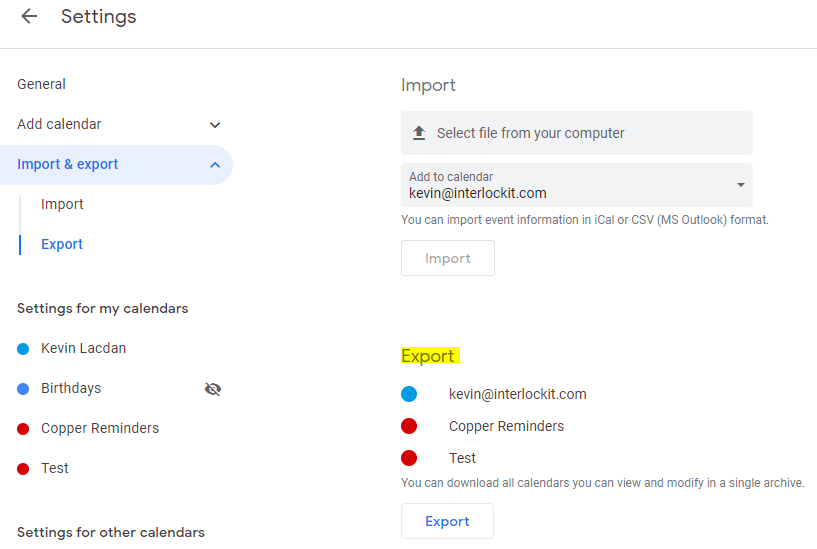
  2. Go to Calendar settings > Import & Export
  3. Click Export, and a ZIP file with all calendars will download to your computer
  4. Extract the ZIP file, noting there is a separate .ics file for each calendar

Importing to Google Calendar

  1. Open Google Calendar on the target account
  2. If they don't already exist, create an appropriate target calendar for each calendar you will import to this account. Note, often you may not want to bring the primary calendar of the source account into the primary calendar of the target account.
  3. Go to Calendar settings > Import & Export
  4. Select the .ics file you intend to import
  5. Select the appropriate target calendar
  6. Click Import


Dealing with large calendars that fail to import

In many cases, a larger calendar will fail to import. This is because of limitations in Google Calendar's import capabilities. The solution is to manually divide the .ics file into several files, importing each separately. Usually, if each file is under 2.5mb it will import without issues, but in some cases you will need to split the files smaller.
Notepad++ is used in the example below.
Open the .ics file in Notepad++ and identify the headers, events, and footers of the .ics file. The headers are every part of the file that come before the first event, and the footers are every part that come after the last event. Everything encapsulated within "BEGIN: VEVENT" and "END:VEVENT" is an individual event. See screenshot below for example of Header, Event, and Footer sections.
The concept of splitting the file is quite simple. We want to create multiple files with the Header and Footer sections intact, while splitting the event content across each of our multiple files, keeping each individual event intact. This is where Notepad++ comes in handy, since it gives you a line reference to the left of each line, so you can keep track of which events you are including in each file.
These example instructions assume you want to split a single .ics file into 2 files:
  1. Open the original .ics file and identify the headers.
  2. Create two new blank .ics files (name them appropriately to keep track of them) and paste the headers into each file. Headers.PNG (553×528)
  3. From the original .ics file, select roughly the first half of events by starting at the first line with "BEGIN:VEVENT" and choosing a line that contains "END:VEVENT" somewhere near the middle of the file. Copy-paste this into the first new .ics file.
  4. From the original .ics file, select the next half of events after the data you copied, which should be the next event beginning with "BEGIN:VEVENT" all the way to near the end of the file, the last line that contains "END:VEVENT". Copy-paste this into the second new .ics file.
  5. Open the original .ics file and identify the footers.
  6. Copy-paste the footers to the end of each of the new .ics files.
  7. Save both of your new files and proceed to import them one-by-one.
If you have questions or if you would like someone from our team to handle this for you, you can fill out this form.